After you save something, it should be findable again on the same platform. Web and iOS both keep a Library of saved items. They do not share one search screen.
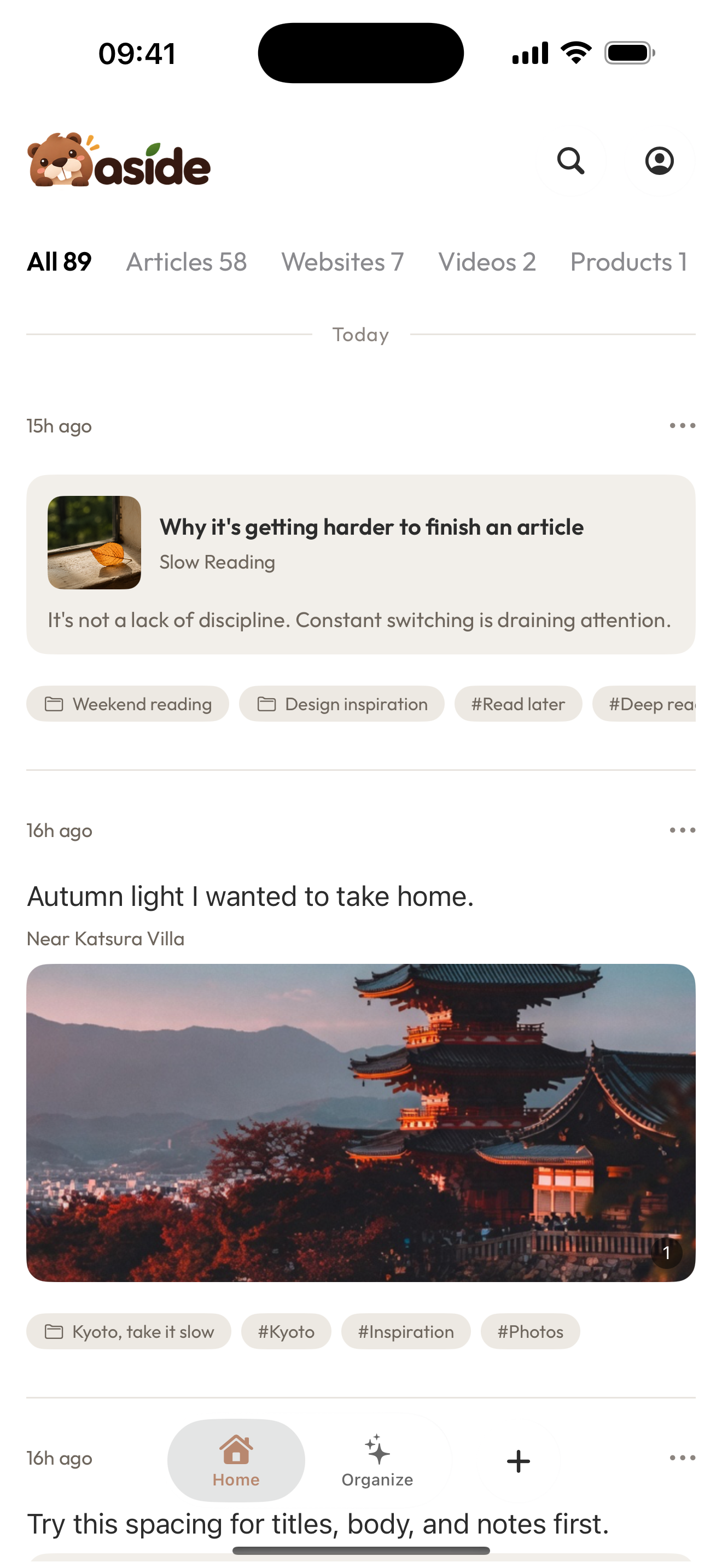
This screenshot is current iOS Home. It is not the Web workspace.
Before you start
You need at least one saved item on the platform you will search. If the shelf is empty, save first: Save your first item.
Sign in on Web if the workspace asks you to.
Platforms this page covers
- Web: Library search lives on Aside Web. The search box is on the same list as your items.
- iOS: Home shows the list. Search is a separate screen opened from the search control.
- Android: not documented here. Do not expect the iOS Home screenshot or the Web search box to match Android.
On the Web
- Open Aside Web.
- Scan the Library list. Newer items appear first.
- Type in the search box when the list is too long. Try a title word, or a hint such as
type:linkortag:papers. - Confirm the matching item is recognizable.
Web search runs on the Library itself. There is no separate Search app.
On iOS
- Open Aside and stay on Home.
- Scan the list of saved items.
- Open Search from the search control.
- Type a word you remember, or use filters such as type, time, tags, or a collection.
- Open a result to confirm it is the item you wanted.
iOS Search is not a copy of the Web search box. Home is the list; Search is the dedicated find screen.
What success looks like
You can point at one item and recognize its title or preview without saving it again.
If nothing matches
Typical stalls:
- searching a different platform than the one you saved on
- searching a word that is not in the title, note, or tag
- an empty Library: Web shows
No saved items yet.iOS Home showsNothing saved yet
Stay on the platform where you saved. Try a shorter word, clear filters, or open the full list instead of Search.
If the item still does not appear, save a clearer copy on that same platform before organizing.