A saved item is something you can open again, rename, or remove. Web and iOS both do this from the item, not from a Publish screen. Their controls are not the same.
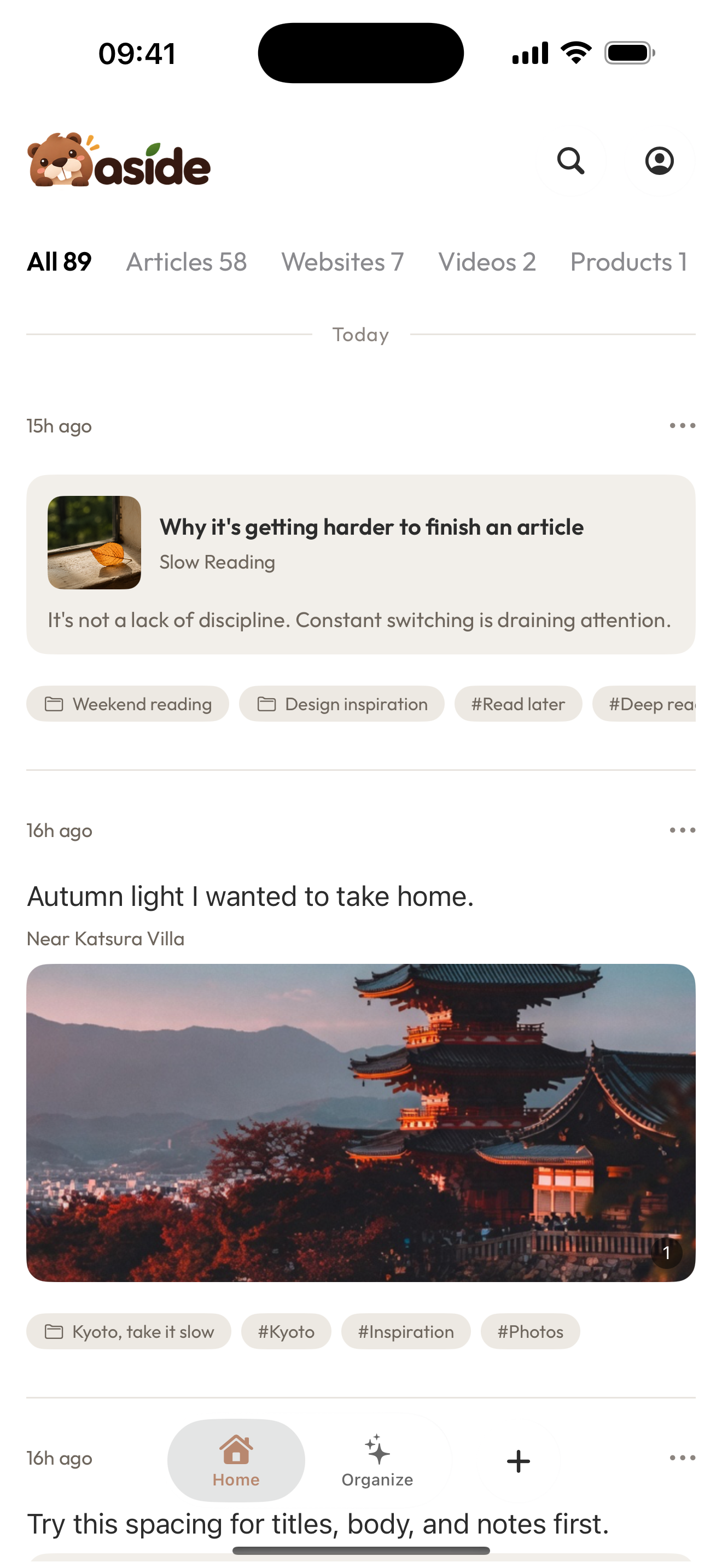
Start from the list. This is current iOS Home, not the Web item detail.
Before you start
Find the item first: Find and search saved items.
You should be able to recognize the title or preview before you edit or delete.
Platforms this page covers
- Web: open an item from Aside Web. Edit and delete live on the item detail.
- iOS: open an item from Home. Delete is behind More, with a confirm step.
- Android: not documented here. Do not look for the iOS More menu on Android, and do not assume Web overlays match it.
On the Web
- Open Aside Web and click the item.
- Review the title, preview, and original source when a source link is available.
- Use Edit to change the title. A blank title will not save.
- Use Delete if you want the item gone. Confirm when the workspace asks.
Web delete is recursive for that item. The default is to ask before deleting. Clearing the title and saving is blocked.
On iOS
- Open Aside and tap the item on Home.
- Review the item. Use More for extra actions.
- To delete, choose Delete, then confirm. iOS asks
Delete this item permanently?before it is gone. - Cancel if you opened Delete by mistake. Confirm is required.
iOS item detail is not a copy of the Web overlay. Stay on the item you opened from Home.
What success looks like
- After an edit, the list shows the new title.
- After a confirmed delete, the item is no longer in the Library.
- After cancel, the item is still there.
If delete asks you to confirm
That is expected. Confirm is the failure-prevention step, not a broken delete.
Typical stalls:
- deleting on a different platform than the one you are looking at
- clearing the title and wondering why Web will not save
- skipping confirm and thinking the item was already removed
If you only wanted to tidy the item, add a note or a tag instead of deleting it.