A note is extra context on one saved item: why you kept it, what to do next, or a sentence you do not want to lose. It is not a collection, and it is not a public page.
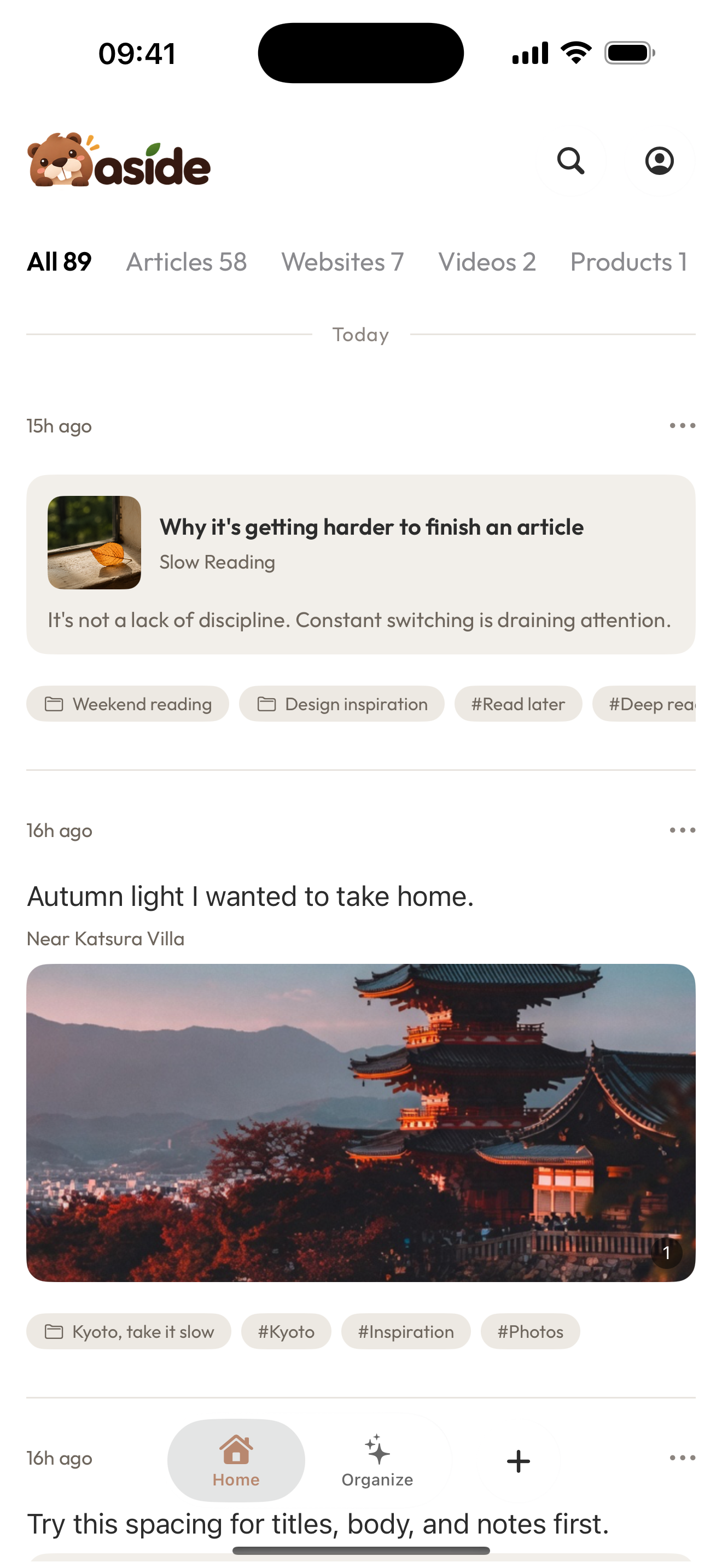
Open the item from the list. This screenshot is current iOS Home, not the notes editor.
Before you start
You need a saved item you can recognize: Open, edit, and delete an item.
Platforms this page covers
- Web: notes live on the item in Aside Web. Use Add Note on the open item.
- iOS: notes live on the item under Notes after you open it from Home.
- Android: not documented here. Do not assume the Web Add Note control or the iOS Notes tab is on Android.
On the Web
- Open Aside Web and click the item.
- Use Add Note. Write one short note and save.
- The note appears on the item. If there are none yet, the item shows
No notes yet. - Edit a note to replace it, or delete a note to remove only that note.
Saving an empty note is not useful. The item itself stays; only the note changes.
On iOS
- Open Aside and tap the item on Home.
- Open Notes on that item.
- Add a short note, or edit one that is already there.
- Remove a note if it is no longer true.
iOS Notes is on the item, not a separate notes app. It is not the Web overlay.
What success looks like
The same item now carries a note you can read when you open it again. The Library list still shows the item.
If there are no notes yet
That is a normal empty state, not a failed save.
Typical stalls:
- looking for a global notes inbox
- adding the note on a different platform than the one you will reopen
- deleting the whole item when you only meant to delete a note
If you need a label across many items, use a tag. If you need a place for several items, use a collection.
Next: Create and use tags.