A tag is a short label you can put on many items. It does not move the item, and it does not publish anything.
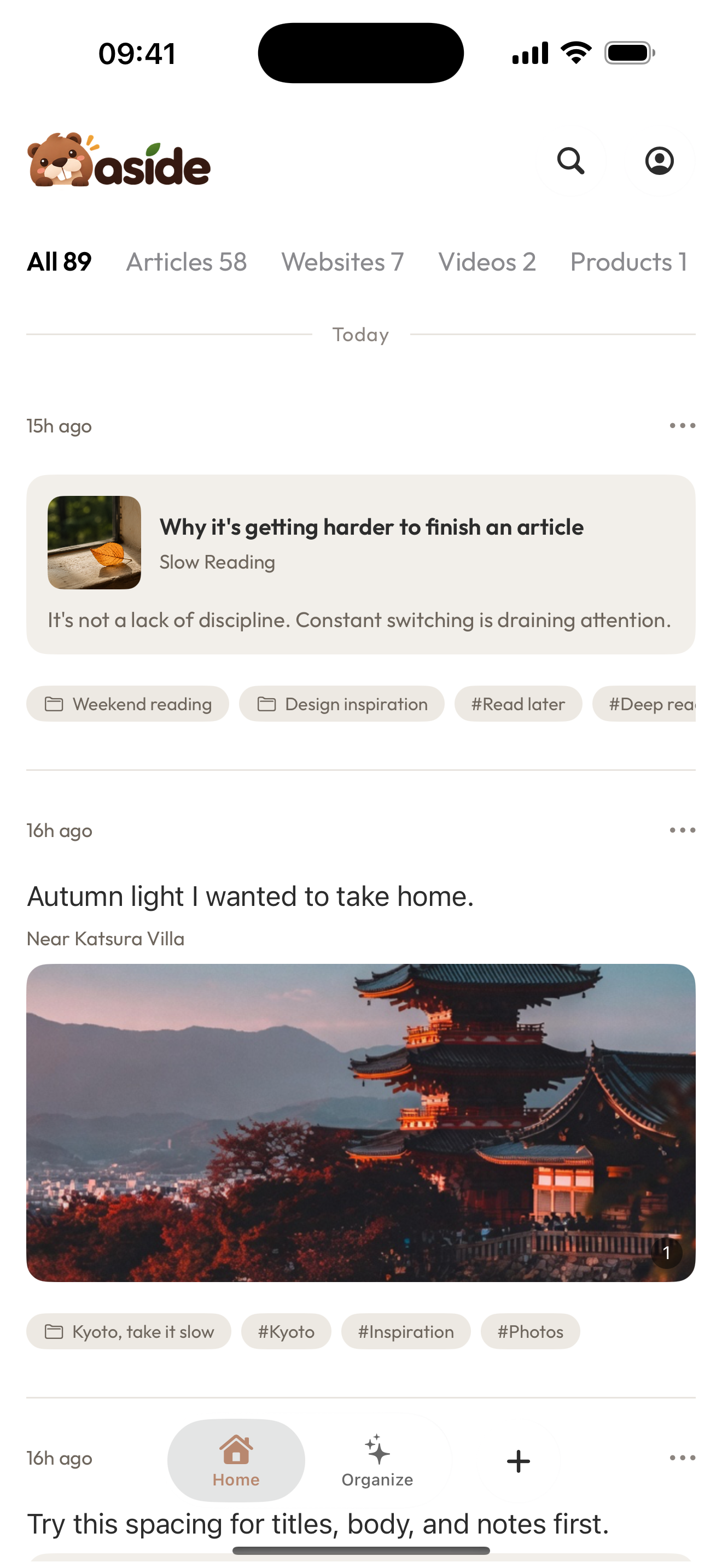
Start from a saved item in the Library. This is current iOS Home, not the Web tags table.
Before you start
Have at least one saved item you can recognize. A tag with no items is still allowed; it just will not help you find anything yet.
Platforms this page covers
- Web: create tags on Aside Web tags, or add a tag from the open item.
- iOS: add tags on the open item, or manage tags from Settings → Tags.
- Android: not documented here. Do not treat the Web tags table or iOS Settings as the Android path.
On the Web
The Tags page shows No tags yet. when you have not created any. Creating a tag does not copy the item.
On iOS
- Open a saved item from Home.
- Use the item's tag controls (Information) to add or create a tag.
- Or open Settings → Tags to see
My Tags. Empty isNo tags yet. - Tap a tag to see items with it. A tag with no items shows
No items with this tag.
iOS tag screens are not a copy of the Web table.
What success looks like
The item shows the tag. Opening that tag lists the same item. Removing the tag leaves the item in the Library.
If the tag will not create
The name is empty. Give it at least one character.
Typical stalls:
- expecting a tag to file the item into a collection
- creating the tag on Web and looking for it only on iOS in the same minute
- opening a tag that has no items yet and assuming the item was deleted
If you want a place that holds several items together, use a collection instead of more tags.
Next: Create and use collections.