A collection is a place for related items. New collections stay private. Creating one does not publish a page.
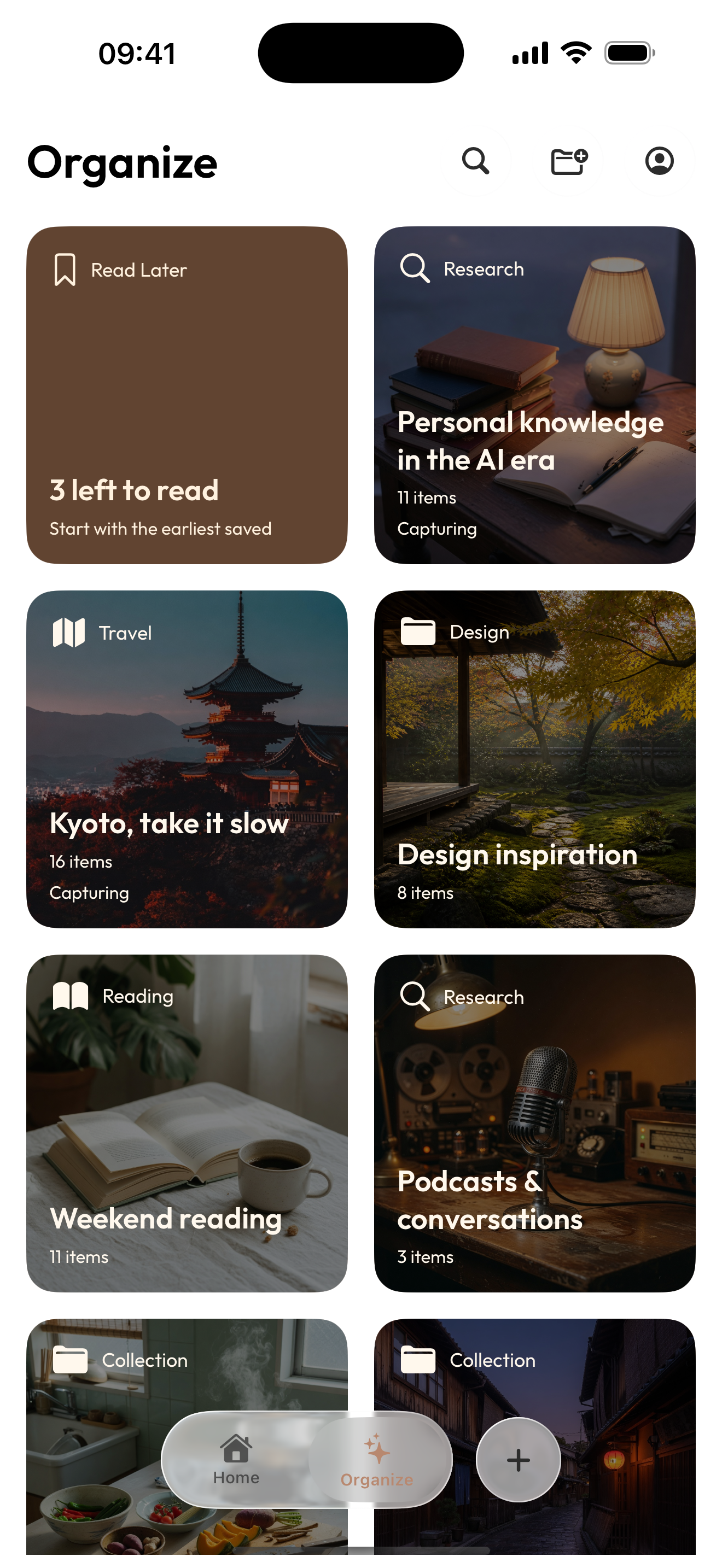
This is the current iOS collection list. It is not the Web organizer, and it is not a public site.
Before you start
Have at least one saved item if you want to put something in the collection. You can still create an empty collection first.
Platforms this page covers
- Web: create and open collections from Aside Web collections. New ones are private.
- iOS: create collections from Organize / the collection list. Empty collections are allowed.
- Android: not documented here. Do not expect the iOS list or the Web organizer to match Android.
On the Web
- Open Collections. If you have none, the page shows
No collections yet. - Create a collection. Give it a non-empty name. An empty name will not save.
- Open the collection. If it has no items yet, it is empty — that is allowed.
- Add a saved item from the item, then return to the collection and confirm it is there.
Deleting a collection removes the collection, not the items. The items stay in the Library.
On iOS
- Open Organize or the collection list.
- Create a collection with a short name. You can fill the rest later.
- Open it. An empty collection says it is still empty and asks you to pick from what you already saved.
- Add items you already have, then open the collection again to confirm they are there.
iOS collections are not a copy of the Web page. The screenshot above is the iOS list.
What success looks like
The collection exists, stays private, and shows the items you added. Items you did not add remain in the Library.
If the collection is empty
An empty collection is a normal first state, not a failed create.
Typical stalls:
- creating with a blank name on Web (it will not save)
- expecting a newly created collection to publish automatically
- deleting the collection and thinking the items were deleted too
- looking for the iOS list inside the Web workspace
Add one recognizable item, then reopen the collection. If you still need to find that item later, go back to search.
Next: Find and search saved items.
Publish a collection
iOS 1.3.0 can publish a collection after you sign in and connect to Arc Space. Wait for the collection to finish syncing, then choose Publish collection from its actions menu. Anyone with its link can browse it without signing in. Creating a collection alone keeps it private.
See Sync and publish with Arc Space for sign-in, moving local items, and stopping publication.