Get started iOS share sheet
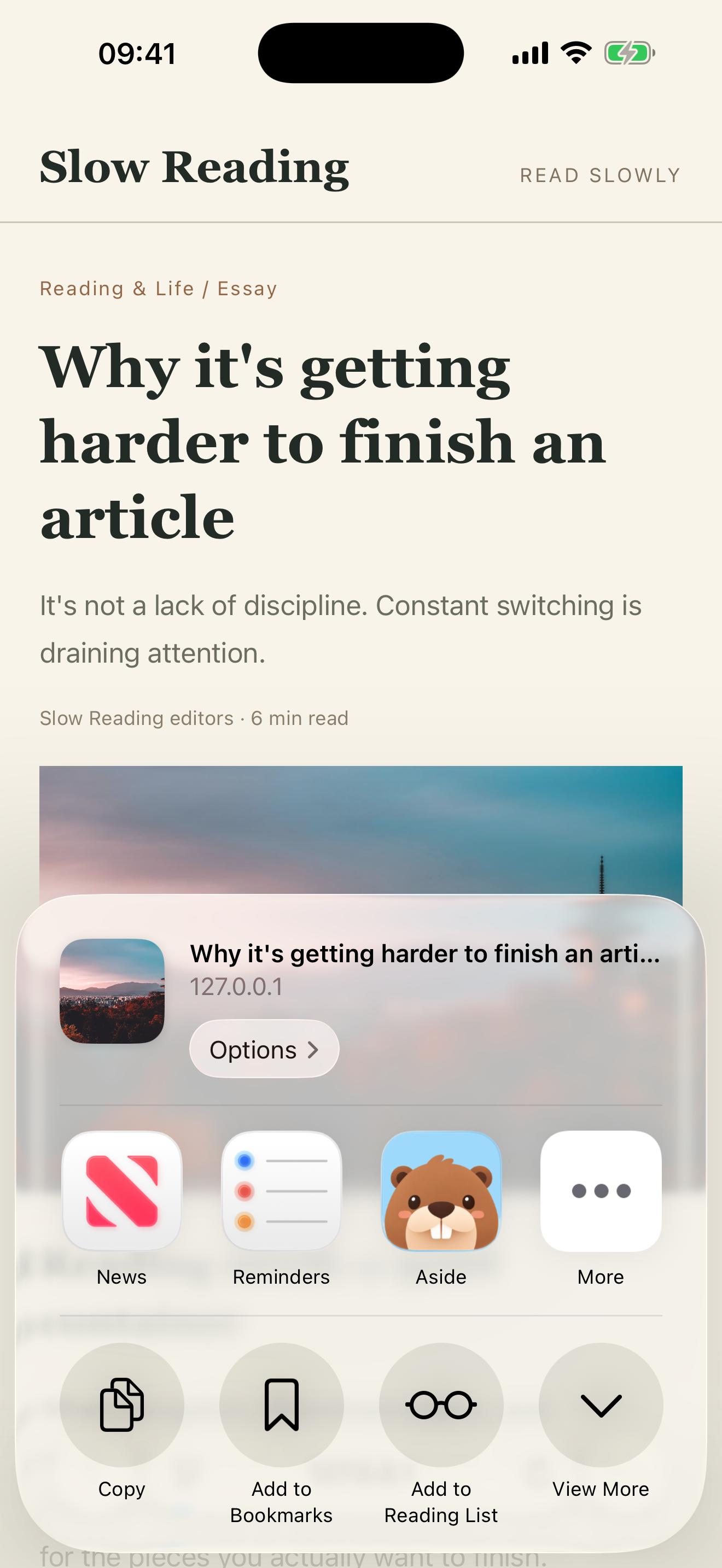
From the iOS share sheet
into Aside.
Open another app, use the iOS share sheet, choose Aside, tap Save. The item appears in your Aside list on the same iPhone.
Share in receives a link, text, image, photos, file, contact, note, or calendarEvent from the iOS share sheet. That is saving into your local library. Sharing into Aside is not publishing to other people.
Start on iPhone · No sign-in needed for the Local Library
What it is for
From other iOS apps
Safari/Chrome
Share the current page. Aside receives the link. Check the preview, then tap Save.
Photos
Share one picture or several. Aside receives an image or photos.
Files
Share a file from Files. Aside receives the file.
Notes
Share a note from Notes. Aside receives the note.
Messages/Mail
Share a link or a block of text from a message or an email.
Contacts
Share a contact card. Aside receives the contact.
Calendar
Share an event. Aside receives the calendarEvent.
Other apps
If another app hands over a URL, text, or image, share it into Aside the same way. This page does not name untested apps as supported.
Make it your own
The shortest path
Share → Aside → Save → open the iOS list. The Aside sheet heading is Save to Aside. Tags, notes, or a collection are optional.
- 01
Open the app that has the item
Safari, Photos, Files, Notes, Messages, Mail, Contacts, Calendar, or another app that can share.
- 02
Tap the system share button
This is the iOS share sheet, not a button inside Aside.
- 03
Choose Aside
If Aside is missing, scroll the app row, tap More, and enable Aside. Then share again.
- 04
Check the preview, then tap Save
The sheet heading is Save to Aside. After Save, the sheet closes. That close is the save finishing.
- 05
Open Aside and find it in the list
Use the same iPhone. Look for a title or preview you recognize. A longer checklist lives in the share sheet guide.
A few things to know
Before you begin.
Aside is missing from the share sheet. What now?
The save never starts until Aside is in the list. Scroll the app row, tap More, and enable Aside. Return to the other app and share again. If it is still missing, open Aside once from the Home Screen, then retry.
The sheet closed after Save. Did it fail?
No. After Save, the sheet closes. That close is the save finishing. Open Aside on the same iPhone and find the item in your list. There is no extra confirmation screen.
What if I already saved this URL?
If you share a link you already kept, the button may read Update Saved Item instead of creating a second copy. The existing item is updated.
I have an export file, not something open in an app.
Use the import tools for a saved export. Share in is for content that is already open in another iOS app.